Font size
  • A-
  • A
  • A+
Site color
  • R
  • A
  • A
  • A
Skip to main content
Join our Community! πŸ‘‹
Teachers Teaching Teachers Teachers Teaching Teachers
  • Home
  • Calendar
  • Courses
  • Donations Welcome
  • Subscribe
  • Privacy Policy
    Privacy Policy Terms of Service Data Deletion Instructions
  • Professional Development
    Integrating Technology Blended Online Learning Admin Training
  • More
You are currently using guest access
Log in
Teachers Teaching Teachers
Home Calendar Courses Donations Welcome Subscribe Privacy Policy Collapse Expand
Privacy Policy Terms of Service Data Deletion Instructions
Professional Development Collapse Expand
Integrating Technology Blended Online Learning Admin Training
Expand all Collapse all
  1. Home
  2. Courses
  3. Moodle MOOC26
  4. AISSE_RT101
  5. Week 3: Practical Application in Clinical Workflows
  6. Week 3 Walkthrough: AI Tool Interface

Week 3 Walkthrough: AI Tool Interface

Section outline

  • Welcome to AI as the Second Set of Eyes! 🌟
  • Week 1:Introduction to AI in Medical Imaging
  • Week 2: AI Tools & The Red Flags They Detect
  • Week 3: Practical Application in Clinical Workflows
  • Week 4: Ethics, Limitations & Accountability
  • Week 5: Future Trends & Advanced Diagnostics
  • Week 6: Showcase and Reflect
  • Certificate of Completion

Activity Instructions: In this mini-lesson, you will practice navigating a simulated clinical AI assistant interface.

Your Task:

  1. Carefully review the interface screenshots provided on the next pages.

  2. Pay close attention to where automated triage flags, confidence metrics and software alerts appear.

  3. Complete the interactive interface checks to test your layout recognition.

Completion requirements:
  • View
  • Finish all steps in the activity
  • Receive a grade
  • Receive a passing grade
Review the interface layout below before moving on
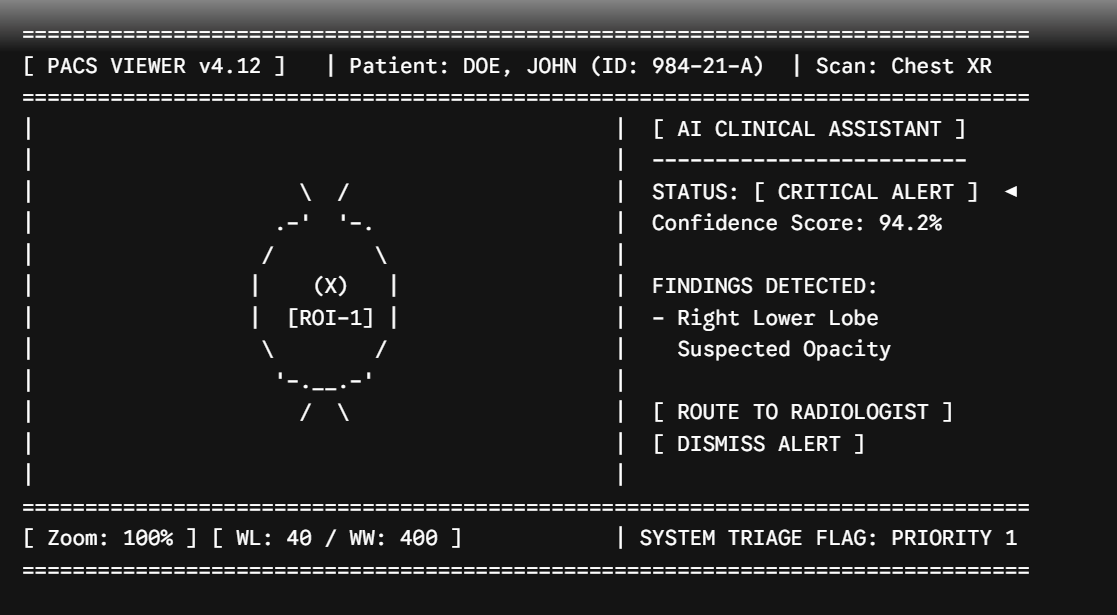
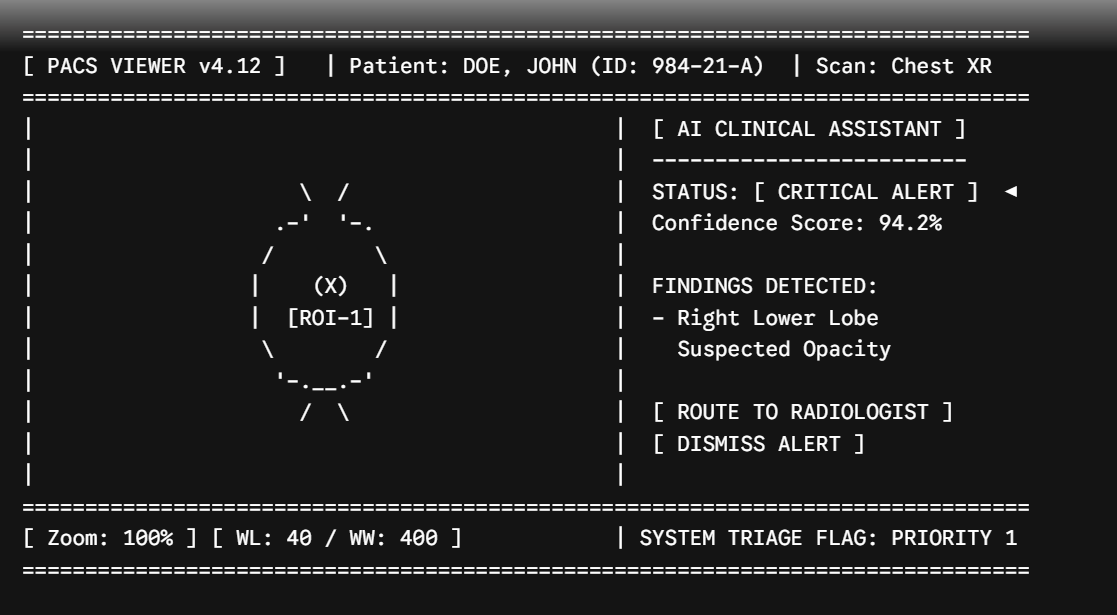
Please carefully review the clinical viewer interface screenshot below. In automated image recognition workflows, understanding where software confidence scores and urgent triage flags are located is critical for preventing diagnostic oversight.

Take note of how high-probability regions of interest are outlined directly on the image matrix.
Remember: The automated system is a powerful tool, but the technologist serves as the essential final check.
Select the single best answer based on the PACS workstation triage dashboard layout
Based on the clinical AI interface layout you reviewed on the previous page, what is the automated system's triage priority tier for this patient scan?
Priority 1 (Critical Alert)
Priority 2 (Routine Review)
Priority 3 (Low Probability)
Check
Correct! The triage flag indicates a Priority 1 critical alert, which requires immediate clinical attention according to our AI imaging protocol.
API user and secret not entered. Please enter them on the settings page. You can get them from Poodll.com.
Previous activity AI Tools in Clinical Practice β€” Week 3 Interactive Video
Next activity Clinical AI Experiences: Discussion Forum
You are currently using guest access (Log in)
Data retention summary
Powered by Moodle

This theme was proudly developed by

Conecti.me
βœ•

Join My YouTube Community

AI for educators, Moodle tips, and practical teaching strategies.

Visit Channel
About
About Integrating Technology